Thinking about editing your photos, but not sure where to start? Many beginners want to improve their pictures but don't want to spend money on expensive software right away. The good news is, there's a wide range of free tools that are easy to learn, work on most devices, and can help you create images you're proud to share.
Let’s explore the top options and see which one might fit your style, skills, and creative goals.
GIMP
GIMP (GNU Image Manipulation Program) has been around since the late 1990s and remains one of the most potent free editors. It works on Windows, Mac, and Linux, and its open-source nature means developers worldwide keep adding new features.
With GIMP, you can do everything from basic retouching to complex image compositions. It supports layers, masks, advanced colour grading, and a vast library of filters. If you've seen a Photoshop tutorial, chances are you can find a GIMP equivalent.
For beginners, the interface may feel technical. But the learning curve pays off—you can start with simple tools like crop, brightness/contrast, and clone, then move into advanced territory. You'll also find countless free tutorials, plugins, and brush packs online to expand its capabilities.
Photopea
Photopea brings professional-level editing right into your web browser. You don't need to download anything—open the website and start working. It looks and feels a lot like Photoshop, and even supports PSD files, which makes it handy if you ever collaborate with someone using Adobe products.
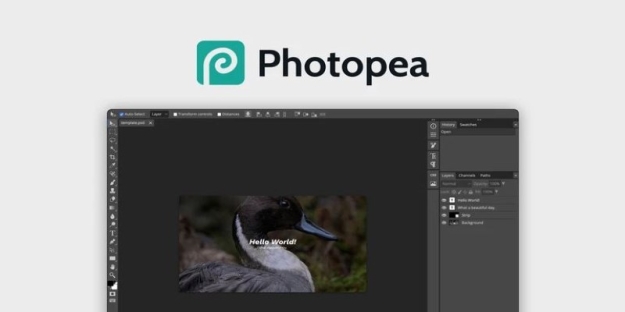
It’s excellent for quick edits like resizing or adding text, but it also supports layers, masks, and advanced selection tools for more complex projects. Because it’s browser-based, you can use it on school computers, work laptops, or even tablets.
The free version has small ads, but they don’t get in the way of editing. If you want flexibility without installing software, this is a top pick.
Canva
Canva is known for making design accessible to everyone—even if you’ve never edited a photo before. It’s perfect for creating social media posts, invitations, banners, or presentations, all with built-in templates.
The free plan includes easy photo editing tools like filters, crop, flip, and brightness adjustments. You can add stylish text, stickers, and shapes with just a click.
What makes Canva especially appealing for beginners is its drag-and-drop interface. You can start from scratch or modify existing templates to suit your needs. If you want your photos to look polished without spending hours learning new software, Canva is a great choice.
Fotor
Fotor combines simplicity with a surprisingly wide set of tools. It works both online and as a downloadable app for Windows and Mac. The interface is beginner-friendly, with clearly labelled options and an "Enhance" button for quick one-click improvements.
You can make collages, design social media graphics, and even remove backgrounds in seconds. Its retouching tools are helpful for portraits—think blemish removal, red-eye correction, and teeth whitening.
For users who want to go beyond filters but still avoid complex menus, Fotor strikes a good balance.
Pixlr
Pixlr offers two main versions: Pixlr X (simple and fast) and Pixlr E (more advanced). Both are browser-based, allowing you to use them anywhere without installation.
Pixlr X is ideal for beginners—it has a clean interface, easy-to-use sliders for brightness and saturation, and a variety of preset effects. Pixlr E offers more control with layers, masks, and advanced selection tools.
Both versions support a wide range of file types, including PSD, PNG, and JPEG. Whether you want to make quick touch-ups or experiment with layered designs, Pixlr adapts to your needs.
Darktable
Darktable is a professional-grade tool for working with RAW files. If you own a DSLR or mirrorless camera, this software is worth exploring. It’s similar to Adobe Lightroom in both appearance and function, focusing on non-destructive editing—your original photo remains untouched while you make adjustments.
You can fine-tune exposure, shadows, highlights, and colours with impressive precision. Darktable also includes tools for managing large photo libraries, making it a strong choice for hobby photographers who want both organization and editing in one place.
Paint.NET
Paint.NET sits in the sweet spot between Microsoft Paint and advanced editors like GIMP. It’s lightweight, quick to install, and only available for Windows.
The interface is straightforward—perfect for users who want basic tools plus a few extras. It supports layers, transparency, and special effects, and you can extend its features with free community plugins.
If you’re on a Windows PC and want something simple yet capable, Paint.NET is a solid option.
Snapseed
Snapseed, developed by Google, is one of the most popular free mobile photo editors. Available for both Android and iOS, it’s packed with tools for on-the-go editing.
You can apply filters, adjust colours, remove spots, and even make selective edits to specific areas of your image. One standout feature is its "Looks" panel, which lets you save your favourite edits and apply them to other photos instantly.
If you love shooting and sharing directly from your phone, Snapseed is fast, powerful, and beginner-friendly.
Photoscape X
Photoscape X is an all-in-one tool that covers editing, batch processing, collage-making, and even GIF creation. It’s available on both Windows and Mac, and its clean interface makes navigation easy.
For quick edits, you can crop, rotate, and adjust colours. For creative projects, you can add text, frames, or combine multiple images. Its batch editing mode is handy if you have a large set of photos that need the same adjustments.
Krita
Digital artists widely use Krita, but it also has features for photo editing. Its painting tools are excellent if you want to blend illustration with photography, but it also handles basic adjustments, cropping, and retouching.
It supports layers, masks, and RAW file editing. The customizable workspace allows you to arrange tools in a way that suits your workflow, making it flexible for both beginners and advanced users.
Building Confidence Through Practice
The most crucial step in learning photo editing is to start. Pick a tool, open one of your photos, and try adjusting brightness, contrast, or saturation. Play with cropping to change the composition.
As you gain confidence, experiment with layers, masking, and blending. Don't worry about making mistakes—most free software includes an "undo" button or history panel so you can try again. Over time, you'll find your editing style and shortcuts that make the process faster and more fun.